Your site worked fine yesterday. Then you updated one plugin and now the checkout button does nothing, the editor will not load, or the whole site shows a white screen. You can fix WordPress plugin conflicts yourself in under an hour, without writing code.
A plugin conflict happens when two plugins — or a plugin and your theme — load code that fights over the same function, script, or database table. Each plugin works on its own, but together they break something. This guide shows you how to find the culprit and fix it.
What Is a WordPress Plugin Conflict?
WordPress lets any plugin hook into the same events, load its own JavaScript, and write to the same database tables. Two plugins can both try to define the same function or load two different versions of the same JavaScript library — and the one that loads second wins, or both break.
The most common clashes follow a few patterns:
- Two plugins doing the same job — two caching plugins, two SEO plugins, or two security plugins fighting over the same output.
- Two plugins loading the same script — for example, two different versions of jQuery, which can freeze sliders, forms, and the block editor.
- A plugin and your theme — a page builder and a theme that both try to control the same template or stylesheet.
- Outdated code meeting a new WordPress version — a plugin not updated in a year calling a function WordPress changed or removed.
Signs You Have a Plugin Conflict
The pattern to look for: the problem started right after you installed, updated, or activated a plugin, and it affects one specific feature. Common symptoms include:
- A white screen or “There has been a critical error on this website” message after an update.
- A form that will not submit, an add-to-cart button that does nothing, or a checkout that hangs.
- The block editor will not load, blocks will not save, or the Customizer shows a blank panel.
- A layout that breaks on one page but looks fine everywhere else.
- Error messages in wp-admin that name a plugin file, or a sudden slowdown right after activating a plugin.
If every page is broken including the homepage, suspect your theme or the server first.
Before You Start: Back Up and Rule Out the Easy Causes
Never start deactivating plugins on a live site without a safety net.
- Back up the site. Take a full backup of files and database before you change anything. If you do not have a backup routine yet, follow my guide on how to back up your WordPress site first.
- Clear every cache. Clear your caching plugin, host cache, and CDN cache, then test in a private browsing window. A stale cache is the most common fake conflict.
- Check what changed. Look at Dashboard > Updates and your host’s activity log. If a plugin, theme, or PHP version changed in the last 48 hours, that is your first suspect.
- Reproduce the problem. Write down the exact steps that trigger it. You will repeat this test after every change, so you need a reliable one.
How to Fix WordPress Plugin Conflicts with Troubleshooting Mode
The official Health Check & Troubleshooting plugin, maintained by the WordPress core team, has a Troubleshooting Mode that switches off all plugins and your theme for your browser session only. Visitors keep seeing the normal site.
- Go to Plugins > Add New, search for “Health Check & Troubleshooting”, and install and activate it — or get it from the official plugin page on WordPress.org.
- Go to Tools > Site Health, open the Troubleshooting tab, and click Enable Troubleshooting Mode.
- Visit the broken page. If it now works, a plugin or your theme is the cause. If not, the problem is in core, the server, or the content.
- Use the Troubleshooting Mode bar at the top of the admin to re-enable plugins one at a time, testing the broken page after each one. When the problem comes back, the plugin you just enabled is involved.
One warning: Troubleshooting Mode does not create a separate database, so do not submit test orders or save real content changes while it is on. For destructive tests, use a WordPress staging site instead.
Method 2: Deactivate and Reactivate Plugins One by One
If you cannot use Troubleshooting Mode — for example, if you are locked out of wp-admin — the manual method works the same way:
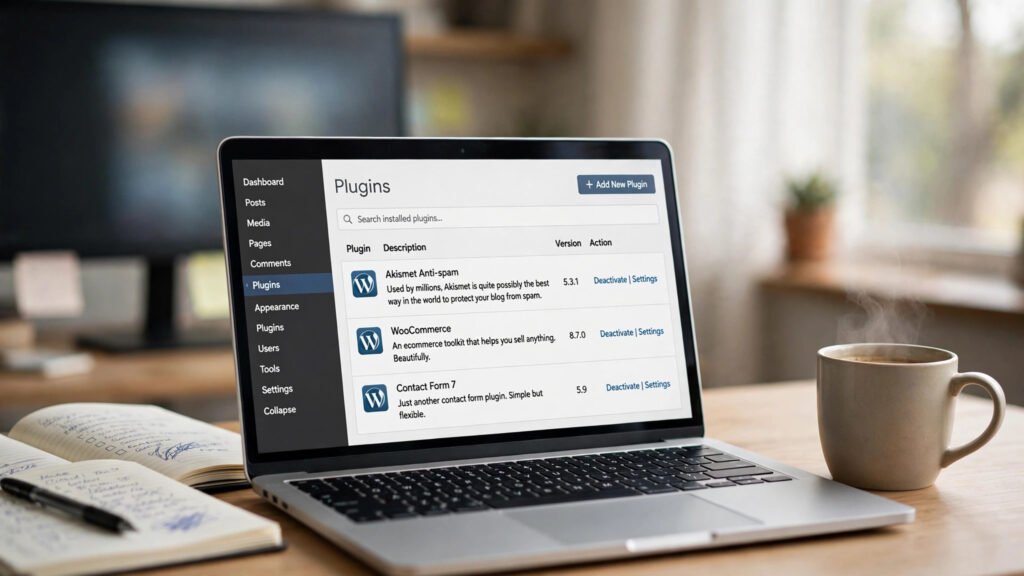
- Go to Plugins > Installed Plugins, tick the checkbox at the top to select all plugins, choose Deactivate in Bulk Actions, and click Apply.
- Reload the broken page. If it works now, a plugin caused the problem.
- Reactivate one plugin, reload the page, and repeat. The plugin that brings the problem back is your suspect.
- Confirm it in both directions: with only the suspect active, the problem should return; with only the suspect off, it should go away.
With 40 plugins, one-by-one testing is slow. Use the half-split shortcut: deactivate half the plugins and test. If the problem is gone, the culprit is in the deactivated half; if it remains, it is in the active half. Repeat on the guilty half until one plugin is left.
Locked out of wp-admin entirely? Connect with FTP or your host’s file manager, open wp-content, and rename the plugins folder to plugins-old. WordPress deactivates every plugin at once. Rename it back, then rename individual plugin folders one at a time — renaming a plugin’s folder deactivates just that plugin. With SSH access, WP-CLI is faster:
wp plugin deactivate --all
wp plugin activate plugin-slug
Method 3: Read the Debug Log
WordPress hides PHP errors from visitors by default, which is good for your audience and useless for debugging. Turn on temporary logging so you can see exactly what is failing. First back up wp-config.php, then add these lines just above the comment that says “That’s all, stop editing!”:
define( 'WP_DEBUG', true );
define( 'WP_DEBUG_LOG', true );
define( 'WP_DEBUG_DISPLAY', false );
@ini_set( 'display_errors', 0 );
Now reproduce the problem, then open wp-content/debug.log. A fatal error names the file and line that failed, and the file path tells you which plugin it lives in — an error in wp-content/plugins/some-plugin/includes/class-loader.php points straight at that plugin. For JavaScript problems, press F12 in your browser and check the Console tab.
Also check your email: since WordPress 5.2, a fatal error triggers an email to the admin address with a Recovery Mode link, and it names the plugin that caused the error. And Tools > Site Health > Info lists every active plugin with its version, plus your PHP and MySQL versions. For the full reference, see the official WordPress debugging documentation. When you are done, turn debug logging off again.
What to Do After You Find the Conflicting Plugin
- Update everything first. Update the conflicting plugin, the plugin it clashes with, your theme, and WordPress itself. Many conflicts are already fixed in a newer release.
- Replace one of the pair. If two plugins do overlapping jobs, keep the one you need most and find an alternative for the other.
- Report it with evidence. If both plugins are essential, contact both developers with the debug log excerpt, your WordPress and PHP versions, and the steps to reproduce.
- Never edit plugin files directly. Patching a plugin’s code works until the next update wipes your edit.
How to Prevent Plugin Conflicts
- One plugin per job. One caching plugin, one SEO plugin, one security plugin. Overlap is where conflicts live.
- Test updates on staging first. Update one plugin at a time on staging and test the key pages before going live.
- Check before you install. Look at a plugin’s “Tested up to” WordPress version and last-updated date on WordPress.org.
Frequently Asked Questions
Can a plugin conflict break my whole site?
Yes. A fatal error in one plugin can take down every page, including wp-admin — that is the white screen of death. If that happens, rename the plugins folder over FTP to get the site back. My guide on fixing the white screen of death covers the full recovery.
Will Troubleshooting Mode affect my visitors?
No. It changes what loads in your browser session only — visitors keep seeing the normal site. Just remember it does not create a separate database, so do not place test orders while it is on.
A plugin conflict feels like a disaster when it hits — a broken checkout, a dead editor, a white screen. But it is almost always one plugin, and you can fix WordPress plugin conflicts with a calm, systematic process. Back up, rule out the cache, use Troubleshooting Mode or the debug log, and confirm the culprit in both directions before you remove or replace anything. And if the conflict is still beating you after all that, get in touch — I fix WordPress conflicts and performance problems for clients and agencies, and I reply within 24 hours.