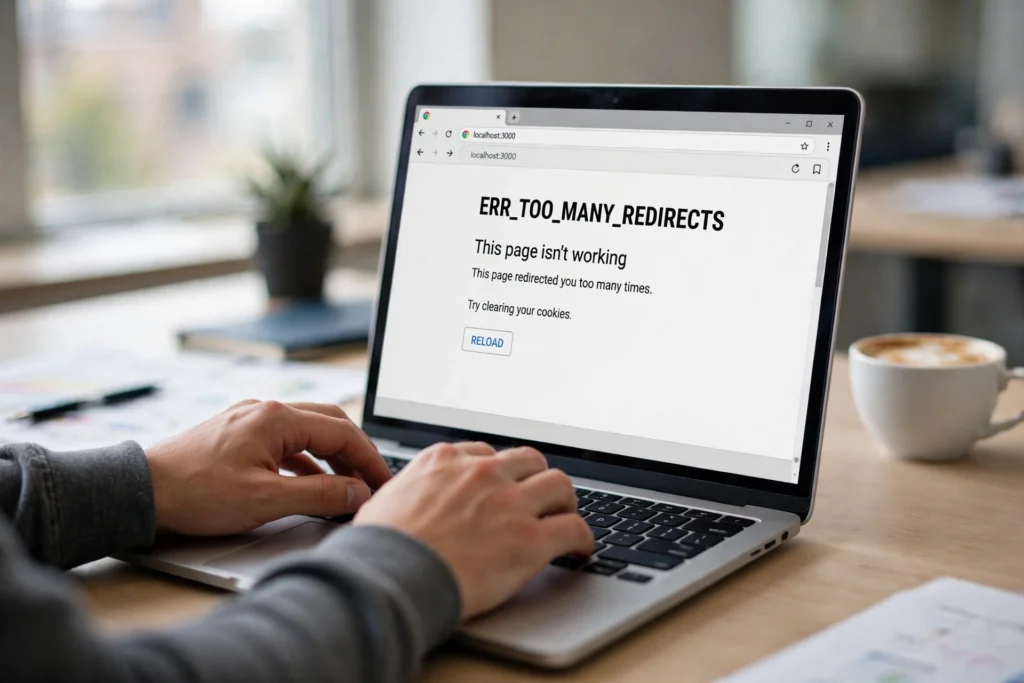
You change one setting — add SSL, move to a new host, turn on Cloudflare — and suddenly your whole site is unreachable. Chrome shows “This page isn’t working” and ERR_TOO_MANY_REDIRECTS. Your site is caught in a redirect loop, and every visitor sees the same dead end. The good news: you can fix WordPress redirect loop errors in under an hour once you find the two settings arguing with each other.
What Is a WordPress Redirect Loop?
A redirect on its own is normal: move a page, and WordPress sends the browser from the old URL to the new one in a single hop. A redirect loop happens when URL A sends the browser to URL B, and URL B sends it straight back to URL A — forever. The browser gives up after about 20 redirects and shows the error instead of your site. Loops almost always follow a change — installing SSL, switching on a CDN, moving host, or editing the site URL — so whatever you changed last is where the loop lives.
What Causes a WordPress Redirect Loop?
Several places in a WordPress stack can issue a redirect. A loop starts when two of them disagree about the correct address:
- Cloudflare on Flexible SSL while your server forces HTTPS. Cloudflare talks HTTPS to visitors but plain HTTP to your server, which redirects to HTTPS — and the cycle repeats.
- Mismatched WordPress Address and Site Address. One field says
http://example.com, the otherhttps://www.example.com. WordPress redirects every visitor to the address saved here. - HTTPS forced in two places. Your host, your SSL plugin, and Cloudflare’s “Always Use HTTPS” can all force HTTPS at once — and disagree while doing it.
- Conflicting .htaccess rules. Rules left behind by old plugins or a migration can contradict each other: one sends www to non-www, another sends it back.
- A redirect or caching plugin. A forgotten redirect rule, or a caching plugin serving a stale redirect, can loop the whole site.
- Stale cookies or cache. A bad redirect can get cached in your browser or CDN, so the site may already be fixed while your browser replays the old loop.
Before You Touch Anything: Back Up and Rule Out Your Browser
Every fix below edits files or settings, so start with a backup — my guide to backing up your WordPress site takes a few minutes. Then rule out your own browser: open the site in a private window. If it loads there, clear cookies for your domain only and hard-refresh. If it still loops, the problem is on the server.
How to Fix WordPress Redirect Loop Errors
Work through these steps in order and test the site after each one. Stop as soon as the loop is gone.
Step 1: Trace the Redirect Chain
If you have terminal access, this command prints every hop:
curl -sIL --max-redirs 10 https://example.com/ | grep -iE "^(HTTP|location)"Replace example.com with your domain. If the same two URLs alternate, you have found the pair that disagrees. No terminal access? Test each fix in the browser instead.
Step 2: Fix the Cloudflare SSL Mode
If your site sits behind Cloudflare, check this first — it is the single most common cause. In the Cloudflare dashboard, go to SSL/TLS → Overview. If the mode says Flexible, change it to Full (strict): Flexible means Cloudflare talks to your server over plain HTTP, which starts the loop when your server forces HTTPS. This guide to too many redirects in WordPress and this step-by-step ERR_TOO_MANY_REDIRECTS guide reach the same diagnosis.
Full (strict) needs a valid certificate on your origin server; most hosts provide a free one. If yours is self-signed, use Full instead. Then purge the Cloudflare cache and test in a private window.
Step 3: Make the WordPress Address and Site Address Match
If you can still reach the dashboard, go to Settings → General. WordPress Address (URL) and Site Address (URL) must be identical: same protocol (https://), same www choice, no trailing slash.
If wp-admin loops too, set them in wp-config.php. Open the file in your site root via FTP or File Manager and add these two lines just above the line that says “That’s all, stop editing!”:
define( 'WP_HOME', 'https://example.com' );
define( 'WP_SITEURL', 'https://example.com' );
Use your real domain, with https:// if you have a certificate, and no trailing slash. These constants override the database values and take effect immediately. Once the loop is fixed, set the same addresses in Settings → General and remove the two lines.
Step 4: Tell WordPress It Is on HTTPS Behind a Proxy
When a proxy or load balancer terminates SSL for you, WordPress may never see the HTTPS request. It thinks the visitor arrived over plain HTTP and redirects to HTTPS, the proxy downgrades it again, and the loop continues. Add this snippet to wp-config.php, above the “That’s all, stop editing!” line:
if ( isset( $_SERVER['HTTP_X_FORWARDED_PROTO'] ) && $_SERVER['HTTP_X_FORWARDED_PROTO'] === 'https' ) {
    $_SERVER['HTTPS'] = 'on';
}
This only works if your proxy sends the X-Forwarded-Proto header — Cloudflare does, and so do most load balancers. The same snippet also fixes loops that only affect wp-admin when FORCE_SSL_ADMIN is set behind a proxy.
Step 5: Reset Your .htaccess File
If the URLs are correct and the site still loops, .htaccess is the next suspect. Rename .htaccess to .htaccess.bak via FTP or File Manager. If the site loads, the file was the problem. Then regenerate a clean one: log in to wp-admin, go to Settings → Permalinks, and click Save Changes. WordPress writes fresh default rules. Add any custom rules back one at a time, testing after each one. A bad .htaccess edit can also cause a 500 error — see my guide to fixing the WordPress 500 internal server error.
Step 6: Deactivate Your Plugins
A redirect manager, SSL plugin, or caching plugin can create a rule that clashes with another redirect in your stack. In the dashboard, go to Plugins → Installed Plugins, select all, and choose Deactivate. If wp-admin is looping too, rename wp-content/plugins to plugins-old via FTP — WordPress treats every plugin as deactivated. If the loop is gone, rename the folder back and reactivate plugins one by one. The last one you activate is the culprit. With WP-CLI: wp plugin deactivate --all, then reactivate in small batches.
Step 7: Remove Duplicate Redirect Rules
Force HTTPS in one place only. Check every layer and switch off all but one: Cloudflare’s “Always Use HTTPS”, your host’s force-HTTPS toggle, your SSL plugin’s redirect setting, and any .htaccess rewrite rule. The same goes for www versus non-www — pick one canonical version and make sure only one rule enforces it. This often appears after a migration, when the new host adds its own redirect on top of rules carried over from the old one — my WordPress migration guide covers the URL checks to run after a move.
Step 8: Clear Every Cache
Redirects get cached aggressively. After the fix that works, clear them all: browser cache and cookies for the domain, your caching plugin’s cache, your host’s server cache, and the Cloudflare cache. Then test in a private window — if it loads, you are done.
How to Prevent Redirect Loops
- One HTTPS enforcer, not three. Decide where HTTPS is forced — host, Cloudflare, or plugin — and turn the others off.
- Keep the site URL consistent everywhere. Settings → General, wp-config.php, Cloudflare, and your host panel should all agree on protocol and www choice.
- Test in a private window after every SSL, CDN, or migration change. A 30-second check catches a loop before your visitors do.
- Keep SSL part of your security routine. A correct HTTPS setup is a core part of hardening the site — my WordPress security hardening checklist covers the rest.
Frequently Asked Questions
Can a redirect loop hurt my SEO?
Yes. A looping URL cannot be crawled, so Google cannot index it. If the loop covers your whole site, every page drops out of the index over time. Fix it fast, then check that the pages return a 200 status in Search Console.
Do I need a plugin to fix WordPress redirect loop errors?
No. Every fix in this guide uses settings and files you already have: Cloudflare, wp-config.php, .htaccess, and the plugin screen. A redirect plugin can manage intentional redirects afterwards, but adding one to fix a loop usually adds another layer that can disagree with the rest.
Still Stuck in the Loop?
A redirect loop looks dramatic — your whole site down with a browser error — but it is almost always one disagreement between two settings. Start with Cloudflare’s SSL mode, then the two site addresses, then .htaccess and plugins. If the site still loops, the cause is usually a server-level redirect only your host can see — open a support ticket and tell them the redirect chain from Step 1.
If you would rather have someone fix WordPress redirect loop errors for you, get in touch — I debug and repair WordPress sites, and I can get yours loading again without the guesswork.