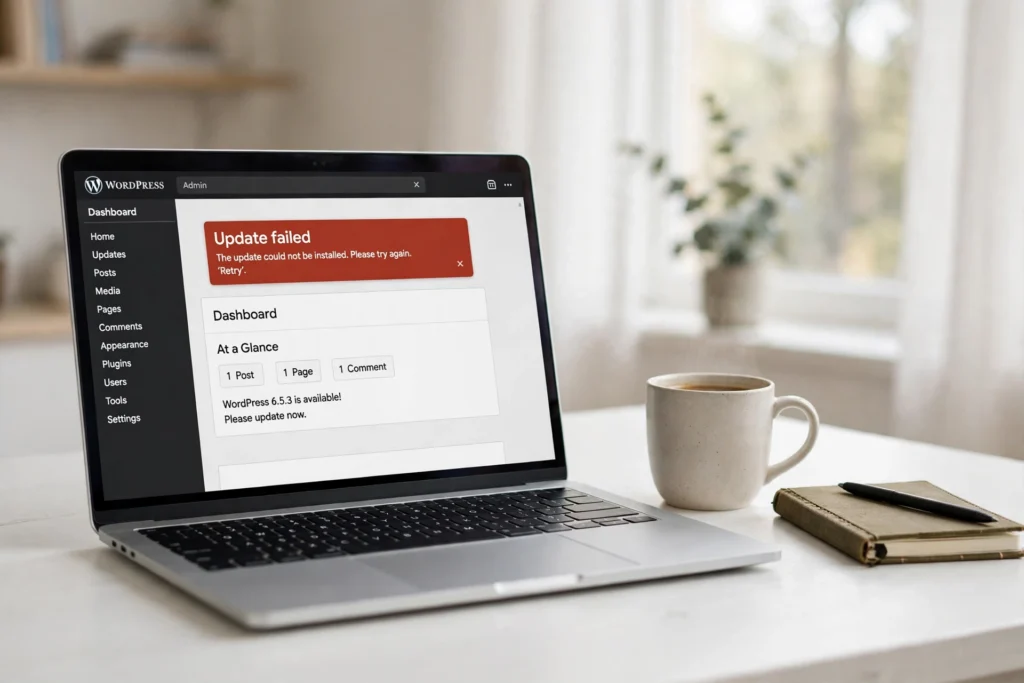
You click Update, wait a few seconds, and instead of a success message you get a red banner: the WordPress update failed error. The plugin, theme, or core update did not install, and the message underneath it is your only clue why. A failed update rarely breaks your site — WordPress stops before replacing anything — but clicking Update again without fixing the cause just fails the same way. Back up first — the fixes below change files and settings, so follow my complete WordPress backup guide if you do not have a routine yet. This guide shows you how to read the message, match it to the fix, and get the update installed.
What the WordPress update failed error actually means
Every WordPress update follows four steps: download the new version as a ZIP from WordPress.org (or a premium vendor’s server), unpack it into wp-content/upgrade, copy the new files over the old ones, and run any database upgrades. The WordPress update failed error appears when one of those steps cannot finish, and the wording tells you which one — permissions, a download that never arrived, a full disk, or an old PHP version each produce a different message. Fix the cause the message names, and the update usually installs cleanly on the next try.
Match the error message to the fix
Do not work through every fix in this guide. Find your exact message in the table, jump to the matching section, and try that fix first.
| Error message | Most likely cause | Fix |
|---|---|---|
| “Download failed” (plus a reason after it) | Your server could not fetch the update package | Fix 3 |
| “Could not create directory” or “Could not copy file” | File permissions or ownership | Fix 2 |
| “Another update is currently in progress” | A leftover update lock | Fix 1 |
| “The PHP version on your server is X, however the uploaded plugin requires Y” | PHP version too old | Fix 5 |
| “Update package not available” | Expired or inactive premium license | Fix 6 |
Fix 1: Clear a stuck maintenance file and update lock
While an update runs, WordPress creates a file called .maintenance in your site’s root folder (the folder holding wp-config.php) and shows visitors “Briefly unavailable for scheduled maintenance”. If the update is interrupted, that file stays behind and the site stays locked. WordPress also records a core update lock blocking new updates for about 15 minutes. Open your host’s File Manager or connect over SFTP, turn on “show hidden files”, and delete the .maintenance file — your site comes back immediately. If the dashboard still says “Another update is currently in progress”, wait 15 minutes, or clear the lock with WP-CLI: wp option delete core_updater.lock. Then run the update again.
Fix 2: Fix file permissions and ownership
“Could not create directory”, “Could not copy file”, and the FTP credentials prompt all mean the same thing: WordPress cannot write to your files. On a correctly set up site, folders should be 755 and files 644, owned by your hosting account user. First, delete any leftover folders in wp-content/upgrade from a previous failed attempt — a half-unpacked folder with the same name blocks the next try. On shared hosting, ask your host to check your files are owned by your account user and that wp-content and its plugin and theme folders are writable. On your own server, make the PHP user the owner, for example sudo chown -R www-data:www-data wp-content. Never “fix” permissions with 777 — world-writable files are a security hole, not a solution. Then retry the update from Dashboard → Updates.
Fix 3: Fix “Download failed” errors
“Download failed” never comes alone — the words after it are the reason, and the reason decides the fix. WordPress gives a single download 300 seconds, and a failed download is deleted automatically.
- “cURL error 28: Connection timed out” — the server never got through to WordPress.org. Wait a few minutes and try again; if it keeps failing, ask your host whether a firewall or DNS problem blocks outbound connections to
downloads.wordpress.org. - “User has blocked requests through HTTP to the URL:” — a line in
wp-config.phpblocks WordPress from contacting other servers. Add the WordPress.org hosts to the allowed list:define( 'WP_ACCESSIBLE_HOSTS', 'api.wordpress.org, downloads.wordpress.org' ); - “Unauthorized”, “Forbidden”, or “Not Found” — the server holding the package refused the request. For a free plugin or theme, try again later; for a premium one, see Fix 6.
If the server still cannot reach WordPress.org, skip the download: download the plugin or theme ZIP on your own computer and upload it under Plugins → Add New → Upload Plugin. WordPress offers to replace the installed version, and an upload asks no other server for anything.
Fix 4: Free up disk space and raise PHP limits
A full hosting account makes updates fail in strange ways — file copies die halfway, unpacking stops, and the error may not mention disk space at all. Check your disk usage in the control panel. Old backups stored on the server are the usual culprit; move them off-site or delete them. Low PHP limits cause the same failure on large updates. If the update dies with a blank screen or a timeout, raise the memory limit — see my guide to increasing the WordPress memory limit — and ask your host to raise max_execution_time.
Fix 5: Update your PHP version
When a plugin or theme update says it requires a newer PHP version, no permission fix will help — the update genuinely cannot run on your server as it stands. Check your PHP version under Tools → Site Health → Info → Server. WordPress itself needs PHP 7.4 or newer, and many current plugins and themes now require PHP 8.1 or 8.2. Switch to a newer PHP version in your hosting control panel, then check a few pages still load before you run the update.
Fix 6: Reactivate an expired premium license
“Update package not available” is the classic premium-plugin failure. Free plugins update from WordPress.org, but premium plugins and themes update from the vendor’s own server, which only hands over the package when your license key is active on your site. Log in to the vendor’s account area, check whether the license is active and assigned to your domain, and renew it if it expired. Then run the update again, or download the latest version from your vendor account and upload the ZIP yourself (see Fix 3). Only download premium updates from the vendor’s own site — “nulled” copies from random download sites often hide a backdoor.
Fix 7: Update manually when the automatic update keeps failing
If you have fixed the cause and the one-click update still fails, bypass it. Upload the ZIP: download the plugin, theme, or WordPress package, then upload it from the dashboard (Plugins → Add New → Upload Plugin). WordPress replaces the installed version and keeps your settings. Or use WP-CLI: wp plugin update --all updates every plugin, wp theme update --all updates themes, and wp core update updates WordPress core — WP-CLI prints the real error when something fails, which is often clearer than the dashboard message. Or replace the core files over FTP/SFTP: download the latest WordPress ZIP, delete the wp-admin and wp-includes folders on the server, and upload the fresh copies — but keep wp-config.php and wp-content untouched. Then visit /wp-admin and run the database upgrade if asked. If this is your first manual core update, read the official Updating WordPress guide and my guide to updating WordPress safely first.
How to stop update failures from coming back
Most update failures are preventable. Update one plugin at a time, so a failure points at a single culprit. Test big updates on a staging site first. Keep your PHP version current, keep some disk space free, and never store backup ZIPs on the server. Run a Site Health check every month or two; it flags the outdated PHP, missing modules, and permission problems behind most WordPress update failed error cases before they cost you an update.
Frequently asked questions
Why does WordPress say “Another update is currently in progress”?
WordPress sets a 15-minute lock while a core update runs. If the update was interrupted, the lock stays behind. Wait it out, or clear it with wp option delete core_updater.lock.
Is it safe to retry an update that failed?
Yes — a failed update does not replace your files, so the old version is still running. Fix the cause first, or the retry fails the same way.
Why does WordPress keep asking for FTP details when I update?
It appears when WordPress cannot write to your files directly — the ownership or permissions are wrong. Entering FTP details works around it, but the real fix is correcting ownership — see Fix 2.
Still stuck on a WordPress update that refuses to install? I fix these issues for clients every week. Get in touch through my contact page and I will get your site updated and running again.