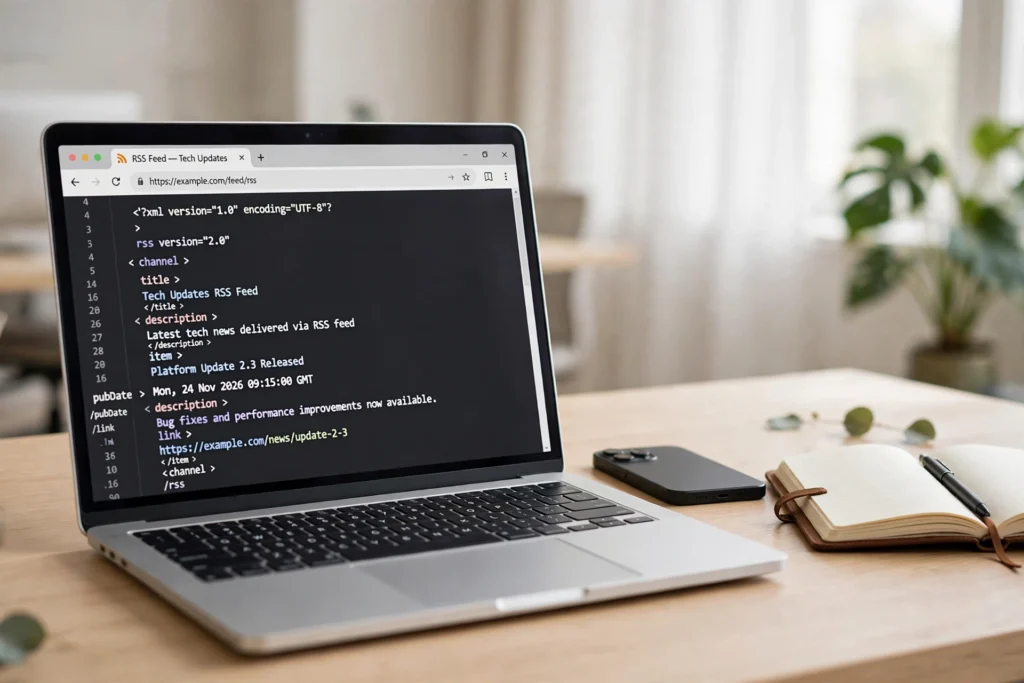
Your RSS feed is one of those WordPress features you never think about — until it stops working. One morning your posts stop appearing in Feedly, your podcast directory flags the feed as invalid, or a reader tells you the feed shows an XML parsing error. The good news: you can fix WordPress RSS feed errors in minutes once you know where to look. Almost every broken feed has the same root cause — something on your site is printing text before the XML declaration, or the feed URL itself no longer resolves.
What Causes RSS Feed Errors in WordPress?
WordPress generates your main feed automatically at yoursite.com/feed/. It is an RSS 2.0 XML document listing your latest posts. XML is strict: the document must start with the <?xml declaration, and nothing — not a blank line, not a space, not a PHP warning — may appear before it.
When anything prints output before that declaration, every feed reader and validator reports a parse error. The usual culprits are stray whitespace in a theme or plugin file, a PHP notice displayed on screen, a byte order mark saved by a text editor, a plugin injecting HTML into every request, broken permalinks, stale cache, or invalid characters inside a single post. Most feeds break right after something changed — a plugin update, a new theme version, a migration, or one particular post — so if you can connect the breakage to a recent change, start there.
How to Fix WordPress RSS Feed Errors
Step 1: Validate Your Feed and Read the Error
- Open your feed in a private browser window at
yoursite.com/feed/. Note what you see: raw XML, an error message, your homepage, a login page, or a blank screen. Each points at a different cause. - Try the fallback address
yoursite.com/?feed=rss2. If this works but/feed/does not, the feed itself is fine — the problem is in your permalinks or a redirect. Skip to Step 5. - Paste your feed URL into the W3C Feed Validation Service. It reports the exact error, for example “XML parsing error: XML declaration allowed only at the start of the document” with a line and column number.
- Check the HTTP status in your browser’s developer tools. A healthy feed returns status 200 with a content type such as
application/rss+xml. Also confirm you have at least one public post — the feed is built from published posts, and a site with none produces an empty or erroring feed.
Step 2: Remove Stray Output in functions.php
The classic RSS feed error — “XML declaration allowed only at the start of the document” — almost always means something printed before the XML declaration. The first place to look is your active theme’s functions.php, especially if custom code was added to it recently.
- Open your hosting file manager or FTP client and navigate to
wp-content/themes/your-active-theme/. - Open
functions.phpand scroll to the bottom. If the file ends with a closing PHP tag?>, make sure there are zero blank lines or spaces after it. - Better still, delete the closing
?>tag entirely. PHP files do not need a closing tag, and removing it makes trailing whitespace impossible. This is standard practice for pure PHP files. - Check the top of the file too: no blank line or space before the opening
<?php. - If the validator error mentions a PHP warning, the message names the file. On a live site, stop PHP printing debug output to the screen. In
wp-config.php, set:
define( 'WP_DEBUG', true );
define( 'WP_DEBUG_LOG', true );
define( 'WP_DEBUG_DISPLAY', false );
This logs errors to wp-content/debug.log instead of printing them into your feed. Never leave WP_DEBUG_DISPLAY set to true on a production site. If the file was saved with a BOM, re-save it as UTF-8 without BOM, then re-validate.
Step 3: Find the Conflicting Plugin
If functions.php is clean, a plugin is the most likely culprit. Plugins that modify post content or inject tracking code sometimes do it on every request — including feed requests — without checking whether the request is a feed. Back up your site first, or work on a staging copy (see our guide on how to create a WordPress staging site).
- Deactivate all plugins, then check the feed. If it works, a plugin is responsible.
- Reactivate plugins one by one, checking the feed after each one, until the error returns. The last plugin you activated is the offender.
- Check for an update or a setting to disable its output on feeds. If there is none, find an alternative plugin, or contact the developer and tell them the feed breaks because of output before the XML declaration.
Cannot deactivate plugins on a live site? Use the Health Check & Troubleshooting plugin: its Troubleshooting Mode disables plugins only for your session, so visitors keep seeing the normal site. It is the same isolation technique used to fix WordPress plugin conflicts of any kind.
Step 4: Rule Out Your Theme
If the feed is still broken with every plugin deactivated, the problem lives in your theme — in functions.php, a template file, or a template part that echoes output unconditionally. Temporarily switch to a default WordPress theme such as Twenty Twenty-Five and check the feed. If it works, the fault is in your theme’s code: open each PHP file you edited recently and look for an echo, stray HTML outside PHP tags, or a blank line before the opening tag.
If a function must add output to posts but not to feeds, wrap it in a feed check:
if ( ! is_feed() ) {
    // Output that belongs on regular pages only.
}
This one condition prevents a whole class of feed errors.
Step 5: Reset Your Permalinks
If the feed returns a 404, redirects to your homepage, or the fallback /?feed=rss2 works while /feed/ does not, your rewrite rules are the problem — not the feed content.
- In your dashboard, go to Settings > Permalinks.
- Do not change anything. Just click Save Changes. WordPress regenerates the rewrite rules and writes a fresh
.htaccesson Apache servers. - Check the feed again. If it still 404s, your
.htaccessmay not be writable — check its permissions (644 is standard). Also check your redirect list: a security or redirection plugin rule may be catching/feed/. For a full walkthrough, see how to fix WordPress 404 errors.
Step 6: Clear Cache and CDN
Sometimes you fix the real cause and the feed still looks broken. That is usually cache: a caching plugin or CDN cached the broken version of the XML and keeps serving it. Purge all caches in your caching plugin, and purge the /feed/ URL in Cloudflare or your CDN if you use one. Then test the feed with a query string appended, such as yoursite.com/feed/?v=1 — a query string usually bypasses the cache and fetches a fresh copy. If that version works and the plain URL does not, it is a cache problem, not a feed problem. Consider excluding /feed/ from caching entirely.
Step 7: Check for Bad Characters in a Single Post
If the validator points at a specific line inside one <item>, the problem is in that post’s content. XML only supports a handful of entities (&, <, >, ", '), so HTML entities such as ™ or in a title can break validation — use the actual character (™) instead. Text pasted from Word or a PDF can carry invisible control characters; re-paste it as plain text and re-save. To confirm a single post is the cause, set it to draft and re-validate — if the feed passes, you have found it.
Frequently Asked Questions
Where is my WordPress RSS feed URL?
Your main feed is at yoursite.com/feed/. Category feeds live at yoursite.com/category/your-category/feed/, and comment feeds at yoursite.com/comments/feed/. The fallback yoursite.com/?feed=rss2 works even when pretty permalinks are broken.
Why does my RSS feed show a blank page?
A blank feed usually means a PHP fatal error — often a syntax error in functions.php or a plugin file. Enable WP_DEBUG_LOG and check wp-content/debug.log, or follow the same isolation steps used for a white screen of death.
Final Thoughts
To fix WordPress RSS feed errors, validate first, then work through the list in order: stray output in functions.php, a conflicting plugin, a theme problem, broken permalinks, stale cache, and bad characters in a single post. In most cases the culprit is a blank line or a plugin printing output where it should not. To stop it happening again, never add a closing ?> tag to a PHP file, keep WP_DEBUG_DISPLAY off on live sites, and re-validate the feed after every theme or major plugin update.
If your feed still will not validate after every step here, the problem may be server-level — a firewall rule or a host setting — and that is the point to bring in a developer who can read the server logs directly. Need a hand? See my WordPress services or get in touch.